

Azure Integration with Biztalk AMQP
Requirements:
Contents
Introduction
AMQP is a messaging system for communicating between two different containers with a variety of nodes. It defines both the protocol for sending messages between nodes and the structure of the messages themselves. For more information about the AMQP adapter please see the AMQP Adapter for Microsoft Biztalk guide.
The AMQP adapter in the nsoftware Biztalk Adapters can be used to integrate with Azure Service Bus. In this guide you will learn how to integrate with Azure Service Bus and build a multi-tenant application to send and receive messages. The adapter is a fully-featured implementation supporting queues, topics, and subscriptions.
Configuration Guide
Create a Service Bus resource in the Azure Portal and take note of the resource's domain name. Once the namespace has been created, it can be managed from the namespace main window:
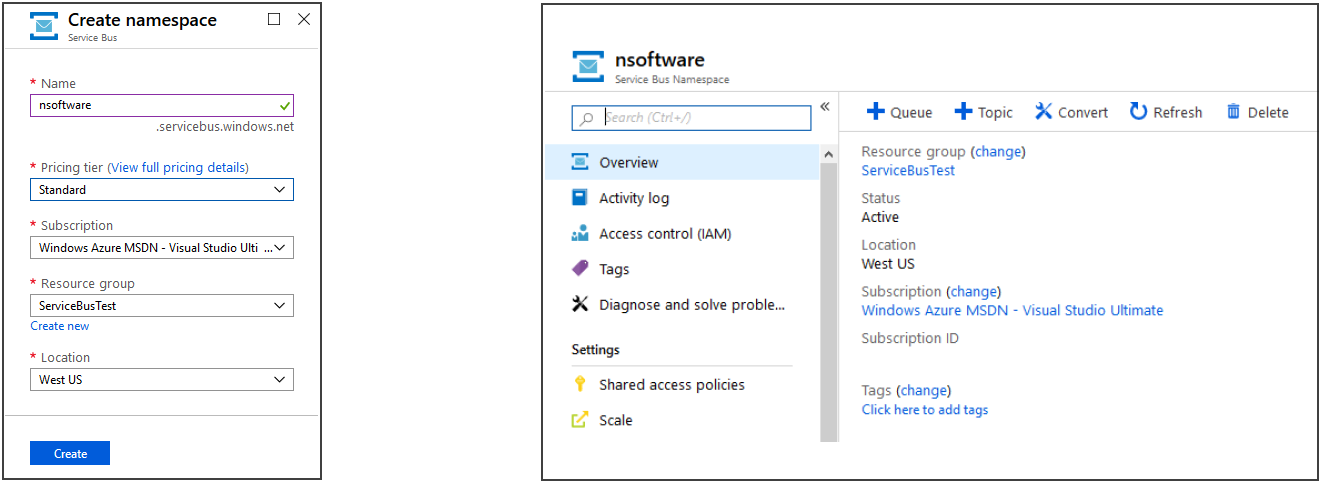
Create a queue using the + button in the namespace main window.
The first step in configuring the AMQP adapter is to set the ContainerId property to any name of your choice. Then, set the RemoteHost property to domain name of the Service Bus resource.
Azure Service Bus requires the use of TLS. By default, it supports connections over port 5671 for TLS over TCP. You can set SSL Start Mode to Automatic.
Next, we will set authentication information in the adapter. All of the necessary information is already available in the Azure Portal. In the namespace window click Shared access policies.
At the time you created your namespace, an initial Shared Access Signature rule (SAS) with a pair of primary and secondary keys was generated. This rule, named RootManageSharedAccessKey, confers rights for managing the entire namespace. Click on the rule to view the associated primary and secondary keys.
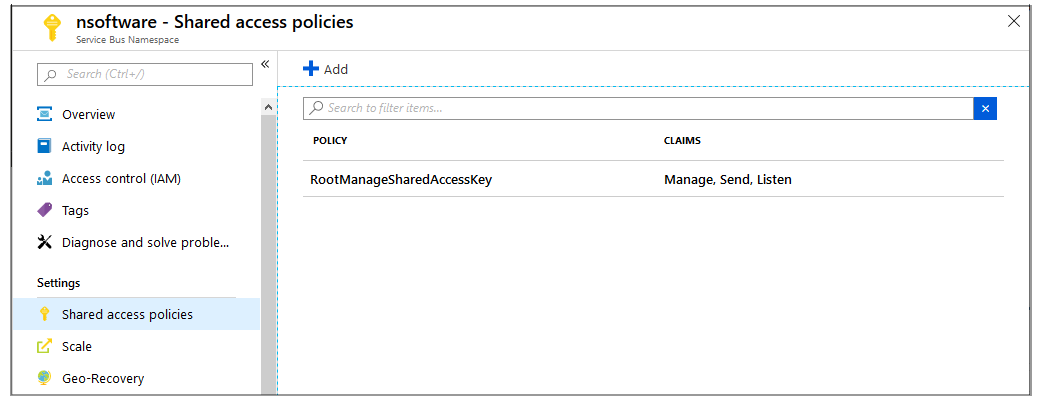
Set the User property to the name of the SAS policy and the Password property to the primary key or secondary key to connect to the resource. The Auth Scheme property must be set to SASLPlain.
Queues
Service Bus queues are a brokered messaging communication model. Clients connected to the broker communicate indirectly with each other by passing messages via a queue. This is particularly useful in distributed Producer-Consumer applications.
Transmitter
The Send Target property should be set to the name of the queue you created in Azure Portal. The Link Name property can be set to any name of your choice. The Session Name property can be set to any name of your choice.
Receiver
The Receive Source property should be set to the name of the queue you created in Azure Portal. The Link Name can be set to any name of your choice. The Session Name property can be set to any name of your choice.
Topics and Subscriptions
Service Bus topics and subscriptions are a one-to-many form of communication that use a publish/subscribe communication model. In contrast with queues, a message sent to a topic is made available to each subscription to handle and process independently.
A topic can be created in the main namespace window in the Azure Portal. Once a topic has been created it will be added to the topic list under the Entities tab:
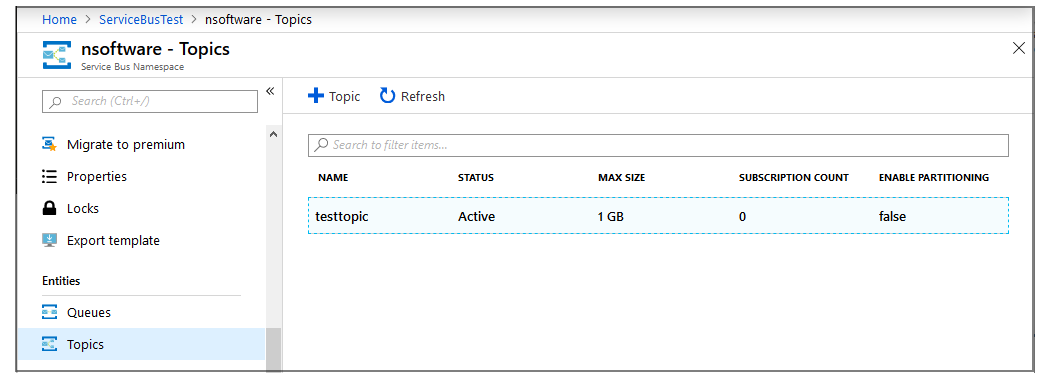
Clicking on a topic in the list will take you to the topic window. It is there that you can add subscriptions to the topic.
Transmitter
A transmitter sending to a Service Bus topic is configured similarly to a topic. The Send Target property should be set to the name of the Topic in your Azure Portal. The Link Name property can be set to any name of your choice. The Session Name property can be set to any name of your choice.
Receiver
The Receive Source property should be set to the name of the Topic in your Azure Portal. Importantly, and different from a Receiver for a Queue, the Link Name property must be set to the name of a subscription on the topic (the subscriptions must be registered on a topic before a receive link can be created). The Session Name property can be set to any name that identifies the session.
That is all that is required to implement brokered messaging with the AMQP adapter.
Useful Configuration Settings
For most AMQP brokers, the default settings will work for typical cases. When communicating with Azure Service Bus, there are several helpful configuration settings that can be set to enable better compatibility. All configuration settings can be set in the Other property.
Transmitter Configuration Settings
The Message Value Type property can be set to Data, along with Message Content Type.
Receiver Configuration Settings
The AzureSessionFilter config can be used when consuming from and Azure Service Bus topic or queue that has sessions enabled. This should be set to the session id configured in Azure.
The DecodeBinaryMessage config can be set to enable automatic decoding of binary messages. This can be helpful if the client-side is sending opaque binary data.
The DefaultReceiverSettleMode config can be used to control the receiver settle mode for links. Azure Service Bus uses the value here to indicate the settlement mode. For example, "Peek-Lock" can be enabled by setting DefaultSenderSettleMode to 0 and DefaultReceiverSettleMode to 1.
We appreciate your feedback. If you have any questions, comments, or suggestions about this article please contact our support team at support@nsoftware.com.