

Getting Started with PDFGen
Requirements: PDF SDK
Introduction
PDF SDK is a suite of components that can create, edit, and inspect PDF documents as well as manage PDF forms.
This guide will focus specifically on the PDFGen component for creating PDF documents from scratch. Before continuing, it is recommended to download the latest version of PDF SDK to follow along with this guide.
Overview
PDFGen is a versatile document generation component that can be used to create PDF documents in a highly customizable way.
Preparing the document for editing is as easy as calling CreateNew. Before calling this method, optionally configure baseline properties that you would like to apply to the new document, such as its page dimensions (SetLayout), page numbering (SetDocumentProperty), or PDF/A compliance requirements (PDFAConformanceLevel). Then start composing the document by adding content. When finished, call Close to close the document and save the changes to either OutputFile, OutputData, or the stream set in SetOutputStream.
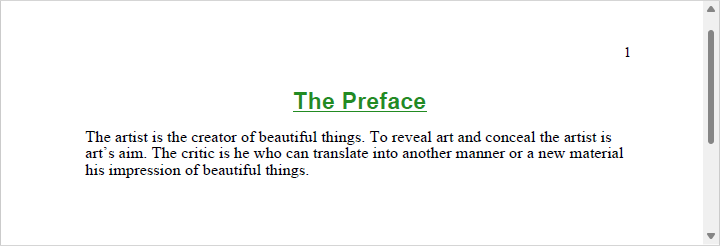
The example below configures page numbers in the right header, adds a centered title with bold and underline formatting, and finally adds a left-aligned paragraph.
PDFGen pdfgen = new PDFGen();
pdfgen.OutputFile = "output.pdf";
pdfgen.SetDocumentProperty("PageRightHeader", "%PAGENUMBER%");
pdfgen.CreateNew();


pdfgen.SetAlignment((int)HorizontalAlignments.haCenter, (int)VerticalAlignments.vaTop);
pdfgen.SetFont("Arial", "20", "bold underline", "forestgreen");
pdfgen.AddText("The Preface", false);
pdfgen.SetFont("Times New Roman", "14", "regular", "black");


pdfgen.AddBreak(0, 2);


pdfgen.SetAlignment((int)HorizontalAlignments.haLeft, (int)VerticalAlignments.vaTop);
pdfgen.AddParagraph("The artist is the creator of beautiful things. To reveal art and conceal the artist is art's aim. The critic is he who can translate into another manner or a new material his impression of beautiful things.");


pdfgen.Close();
Canvases and the Editing Process
Every editing operation performed by PDFGen goes through a canvas, which is an editing window with a set of rules and operations defined for it that is either:
- A text canvas, which can be thought of as a multi-line rich text editor;
- A drawing canvas, a rectangular random-access drawing area; or
- A table canvas, a rectangular grid of rows and columns.
The canvas types are distinct, meaning only one of them can be used at a time to create a specific piece of content. Canvases of different types can be grouped together or used as part of other canvases, which provides a powerful and flexible tool for creating content of various types and complexities. For example, a drawing canvas containing a graphic can be embedded into a text canvas containing the document body.
When CreateNew is called, the component automatically creates a page-wide text canvas (a "page canvas") so you can start adding content right away. This canvas takes into account the dimensions of the page and any margins configured. One-inch margins are set by default. Upon reaching the end of the page, the component closes the corresponding canvas, creates a new one for the next page (thus "turning the page" behind the scenes), and continues until all the content has been added.
You can always create your own canvases (and sub-canvases) should you need to add non-standard kinds of content that go beyond the traditional document layout, such as marginal notes, watermarks, or signatures.
Additionally, a canvas exists in one of three states:
- Open, where it is in the process of editing and the content can still be changed;
- Closed, where editing has been completed and the content has been finalized ("committed"); or
- Rendered, where the content has been serialized from its internal closed representation into a PDF graphics stream.
An open canvas resembles an active editing area. Examples include a text canvas containing a line of text to which words are still being added, and a drawing canvas containing a path that has been started but not completed.
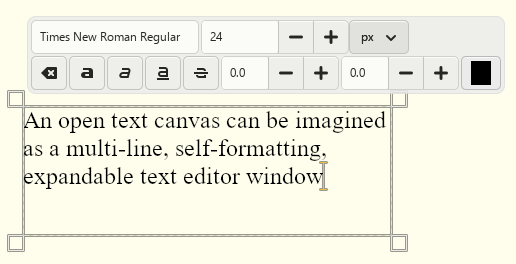
Changes made to an open canvas may influence how the content is represented in the document when the canvas is eventually rendered. For example, any text added to a center-aligned line in a text canvas will cause existing text to move leftward. Any text added to a drawing canvas – which is random access and does not offer the capability of formatting – will not affect any other content added to it previously.
A closed canvas resembles an opaque rectangle filled with visual elements. Once a canvas is closed, all such elements become locked and their dimensions are known, which enables their absolute positions and sizes to be calculated unambiguously as the component can be certain that they will not change.
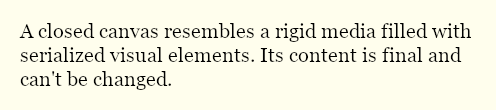
During the editing process, PDFGen creates pieces of content, fills them in, closes them, and renders them onto the page. It adds content to the document sequentially like a typewriter: once added, content cannot be deleted. However, unlike a typewriter, content can be automatically formatted by the component on a later stage. For example, updating the dimensions of a text canvas may cause elements added to it previously to be rearranged, similar to how expanding a text area control in a browser form rearranges its content.
Text Canvases
A text canvas is a vertical series of lines, each comprised of a horizontal series of elements. It is analogous to a traditional text editor and is used for creating structured (mostly textual) content, which is added element by element, line by line. Pages, signature fields added via AddSignatureField, and table cells are all kinds of text canvases.
Random access is not allowed in text canvases; instead, the component stacks elements in the current line and arranges them as they are added. This means that in general, the dimensions of a text canvas (its Width and Height) are not fixed and may expand horizontally and vertically.
If the current line is full and cannot accommodate a subsequent element (and the chosen constraints do not allow for it to be expanded), in most cases the component completes the current line, adds a new one, places the cursor at the beginning of the new line, and adds the element there. However, if the element's width exceeds MaxWidth, it will not fit in the new line either, so the OutOfSpace event fires to give your code a chance to forcefully expand the canvas or cancel the insertion of the element altogether.
Similarly, exceeding MaxHeight also causes the component to automatically wrap to the next default canvas (e.g., the next page or column) or trigger OutOfSpace. Subscribe to that event to recover from failed calls in a flexible way.
Drawing Canvases
A drawing canvas is analogous to a drawing board and is used for creating free-form vector content in two-dimensional Cartesian space. A drawing canvas provides random access: primitives can be placed anywhere within its bounds in any order, and all coordinates are specified relative to the bottom-left corner of the canvas.
Content is built from path primitives, which include lines, curves, and closed shapes that can be stroked, filled, or used to define clipping regions. Common shapes such as rectangles, circles, and polygons are also supported directly, as is importing SVG path data via AddDrawing and placing bitmaps via AddBitmap.
The visual appearance of each primitive is controlled by the active Pen and Brush at the time the path is started. The pen governs the stroke (color, thickness, style, line cap, and line join) and the brush governs the fill (color and opacity). Use SetPen and SetBrush to configure these properties; they remain in effect until changed.
The dimensions of a drawing canvas are fixed at creation time. Content that exceeds these bounds is clipped. When committed to its parent canvas via EndDrawing, the drawing canvas can be scaled, skewed, and rotated as needed.
When committed to a text canvas, a drawing canvas is treated as an inline element and flows with surrounding content, just like text and bitmaps. When committed to another drawing canvas, it is positioned at explicit coordinates within that canvas.
Table Canvases
A table canvas is used for creating grid-based content organized into rows and columns. The column count is fixed at creation time; rows and cells are added sequentially, and the layout engine resolves all column widths and row heights when the table is committed to its parent canvas via EndTable.
Each cell is itself a text canvas, so any content that can be added to a page can also be added to a cell, including paragraphs, bitmaps, and nested drawing canvases. Cells can span multiple columns or rows, which the layout engine automatically accounts for when distributing space.
Width constraints can be specified at both the table and cell level. When no preferred width is given, the layout engine distributes available space proportionally across columns based on their content. Row heights follow the same principle: the height of each row is determined by the tallest cell it contains, unless a fixed or minimum height is specified via StartTableRow.
The Pen and Brush active when a cell is opened determine its border style and background fill. Individual cell borders can be suppressed via a bitmask passed to StartTableCell, allowing any combination of top, right, bottom, and left borders to be hidden independently.
We appreciate your feedback. If you have any questions, comments, or suggestions about this article please contact our support team at support@nsoftware.com.