

Customizing PDF Signature Widgets with PDFSign
Requirements: Secure PDF
Introduction
A signature widget is a visual representation of a PDF signature, used to display elements such as a company logo, an image of a handwritten signature, or information about the signer. This article demonstrates some of the many widget customization options provided by the PDFSign component. All supported widget properties can be adjusted before signing using the SetWidgetProperty method, and a subset of the most commonly used ones are also available as SignatureWidget* properties.
Sizing and Positioning the Widget
The SignatureWidgetWidth and SignatureWidgetHeight properties (equivalently, the Width and Height widget properties) control the size of the widget in points. Additionally, the PositionAnchor widget property can be used to place the widget at one of the preset positions on the page: BottomLeft, BottomRight, TopLeft, TopRight, or Center. From there, the widget will be placed SignatureWidgetOffsetX points from the anchor in the horizontal direction and SignatureWidgetOffsetY points from the anchor in the vertical direction. For example, the following code positions the widget 50 points to the right of and 150 points below the top-left corner:
pdfsign.SetWidgetProperty("PositionAnchor", "TopLeft");
pdfsign.SignatureWidgetOffsetX = "50";
pdfsign.SignatureWidgetOffsetY = "150";
Alternatively, keep PositionAnchor set to Default, and specify SignatureWidgetOffsetX and SignatureWidgetOffsetY as absolute page coordinates from the left-hand and bottom page borders respectively.
Adjusting the Background
After deciding on the size and position of the signature widget, adjusting its background to your liking is one way to customize its appearance. The type of background is controlled by the BackgroundStyle widget property.
Default Background
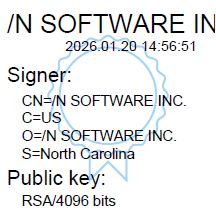
Keeping BackgroundStyle set to Default instructs the component to use the default background of a certificate seal:
No Background
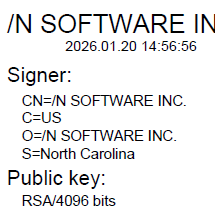
To create a widget without a background, set BackgroundStyle to None:
pdfsign.SetWidgetProperty("BackgroundStyle", "None");
Custom Background
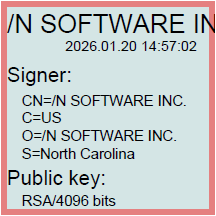
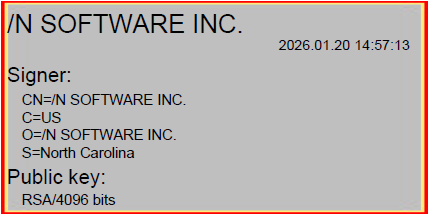
Set BackgroundStyle to Custom to supply your own background data in the form of PDF graphics operators or a JPEG or JPEG 2000 image.
PDF Graphics Operators
The CustomBackgroundContentStream widget property can be used to customize the background using PDF graphics operators. For example:
pdfsign.SetWidgetProperty("BackgroundStyle", "Custom");
int width = int.Parse(pdfsign.SignatureWidgetWidth);
int height = int.Parse(pdfsign.SignatureWidgetHeight);
string customBackgroundContentStream =
  "0.9 0.5 0.5 rg\r\n" +
  "0 i\r\n" +
  "0 0 " + width + " " + height + " re\r\n" +
  "f\r\n" +
  "0.83 0.9 0.9 rg\r\n" +
  "2 2 " + (width - 4) + " " + (height - 4) + " re\r\n" +
  "f\r\n";
pdfsign.SetWidgetProperty("CustomBackgroundContentStream", customBackgroundContentStream);
JPEG Image Stretched to the Entire Widget
To provide your own background image, set the BackgroundImageType widget property to the format of the image, and set BackgroundData to either the path to the image or its hex-encoded bytes. Make sure BackgroundImageWidth and BackgroundImageHeight match the respective dimensions of the image in pixels. By default, the component will stretch the background image to fit the entire widget. For example:
pdfsign.SignatureWidgetWidth = "140";
pdfsign.SignatureWidgetHeight = "70";
pdfsign.SetWidgetProperty("BackgroundStyle", "Custom");
pdfsign.SetWidgetProperty("BackgroundImageType", "JPEG");
pdfsign.SetWidgetProperty("BackgroundData", "Background120x120.jpg");
pdfsign.SetWidgetProperty("BackgroundImageWidth", "120");
pdfsign.SetWidgetProperty("BackgroundImageHeight", "120");
JPEG Image Fixed to a Certain Size
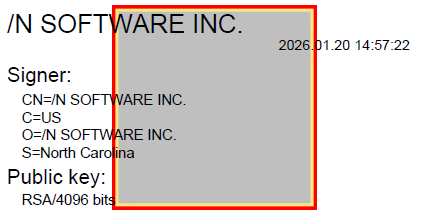
Use the BackgroundWidth and BackgroundHeight widget properties to control the stretching of the background image. For example:
pdfsign.SignatureWidgetWidth = "140";
pdfsign.SignatureWidgetHeight = "70";
pdfsign.SetWidgetProperty("BackgroundStyle", "Custom");
pdfsign.SetWidgetProperty("BackgroundImageType", "JPEG");
pdfsign.SetWidgetProperty("BackgroundData", "Background67x67.jpg");
pdfsign.SetWidgetProperty("BackgroundImageWidth", "67");
pdfsign.SetWidgetProperty("BackgroundImageHeight", "67");
pdfsign.SetWidgetProperty("BackgroundWidth", "67");
pdfsign.SetWidgetProperty("BackgroundHeight", "67");
JPEG Image Fixed to a Certain Size with a Custom Position
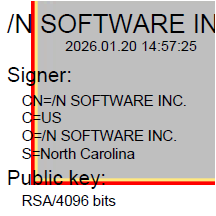
The BackgroundPosition widget property can be used to position the background image relative to a custom coordinate pair in the widget, where the origin is the bottom-left corner. The X and Y coordinates must be provided in points. For example:
pdfsign.SetWidgetProperty("BackgroundStyle", "Custom");
pdfsign.SetWidgetProperty("BackgroundImageType", "JPEG");
pdfsign.SetWidgetProperty("BackgroundData", "Background67x67.jpg");
pdfsign.SetWidgetProperty("BackgroundImageWidth", "67");
pdfsign.SetWidgetProperty("BackgroundImageHeight", "67");
pdfsign.SetWidgetProperty("BackgroundWidth", "67");
pdfsign.SetWidgetProperty("BackgroundHeight", "67");
pdfsign.SetWidgetProperty("BackgroundPosition", "10 10");
Other Customization Options
Further ways to customize the widget's appearance are highlighted below. Note that this list is not exhaustive.
Font Size
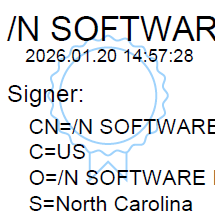
The *FontSize widget properties can be used to adjust the font sizes of the sections of text that are generated by default. For example:
pdfsign.SetWidgetProperty("TitleFontSize", "11");
pdfsign.SetWidgetProperty("DateFontSize", "6");
pdfsign.SetWidgetProperty("SectionTitleFontSize", "8");
pdfsign.SetWidgetProperty("SectionTextFontSize", "7");
Default Text
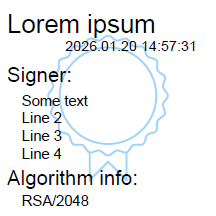
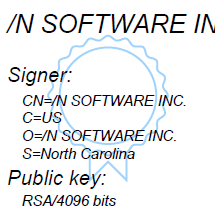
When the Header, Signer*, and Algorithm* widget properties are set to their default value of #auto, the component will generate the header, signer, and algorithm text automatically based on the signing certificate. You can change this default text by setting these widget properties to custom values. For example:
pdfsign.SetWidgetProperty("Header", "Lorem ipsum");
pdfsign.SetWidgetProperty("SignerCaption", "Signer:");
pdfsign.SetWidgetProperty("SignerInfo", "Some text\r\nLine 2\r\nLine 3\r\nLine 4");
pdfsign.SetWidgetProperty("AlgorithmCaption", "Algorithm info:");
pdfsign.SetWidgetProperty("AlgorithmInfo", "RSA/2048");
Timestamp and Font
Set the ShowDate widget property to False to hide the timestamp, and use FontName to specify the name of a Type 1 or TrueType font to apply to the widget text. For example:
pdfsign.SetWidgetProperty("ShowDate", "false");
pdfsign.SetWidgetProperty("FontName", "Helvetica-Oblique");
Rotation
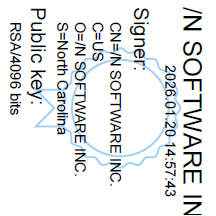
The Rotation widget property can be used to rotate the widget by either 90, 180, or 270 degrees clockwise. For example:
pdfsign.SetWidgetProperty("Rotation", "90");
We appreciate your feedback. If you have any questions, comments, or suggestions about this article please contact our support team at support@nsoftware.com.