

Connecting to Azure Blob Storage SFTP with Microsoft Entra ID (Azure AD) from Code
Requirements: IPWorks and IPWorks SSH
IPWorks SSH provides a suite of easy-to-use SSH components. This article covers signing in to Azure Blob Storage SFTP with a Microsoft Entra ID (formerly Azure Active Directory) user or service principal, using the SFTPClient component from IPWorks SSH and the OAuth and CertMgr components from IPWorks. For other SSH authentication methods, please see our SSH Authentication article.
Microsoft documents this sign in with the Azure CLI command az sftp cert. An application that connects from its own code has to request the certificate itself. SSH has no OAuth authentication method, so Entra ID issues a short-lived OpenSSH user certificate instead. The client then connects with public key authentication, using its private key and the certificate.
There are two ways to request the certificate:
- Sign in as a user. The user signs in through a browser, and the application uses the client ID of the Azure CLI.
- Sign in as a service principal. An app registration of your own signs in with its client ID and a secret, with no user and no browser. This suits unattended uploads.
The samples below use C#. IPWorks and IPWorks SSH are also available for Java, C++, Python, Node.js, Go, Rust, PHP, Delphi, C++Builder, macOS and Android.
Contents
- Entra ID and Azure SFTP Terms
- Azure Setup
- Authorization
- Connecting with SFTPClient
- Renewing the Certificate
- Complete Example
- Limitations
- Frequently Asked Questions
Entra ID and Azure SFTP Terms
The tables below explain the Entra ID and Azure SFTP terms used in this article and name the member that handles each one.
The CertMgr component from IPWorks exports the public key:
| Entra ID term | What it is | CertMgr member |
|---|---|---|
| req_cnf | The public key as a JWK. Entra ID binds it into the certificate. | ExportFormat property set to JWK, then ExportedCert |
| key_id | The key ID inside the JWK, sent again in the token request | JWKKeyId configuration setting |
The OAuth component from IPWorks requests the certificate:
| Entra ID term | What it is | OAuth member |
|---|---|---|
| /oauth2/v2.0/authorize and /oauth2/v2.0/token | The sign in and token endpoints of the Microsoft identity platform for your tenant | ServerAuthURL and ServerTokenURL properties |
| Authorization code flow | A user signs in through a browser, and the returned code is exchanged for the certificate | GetAuthorization method |
| Client credentials flow | A service principal signs in with its own client ID and secret, with no user | GrantType property set to ogtClientCredentials, with the ClientId and ClientSecret properties |
| token_type, req_cnf and key_id | Extra token request fields that ask for an OpenSSH certificate instead of an access token | FormVarCount, FormVarName[i] and FormVarValue[i] configuration settings |
| OpenSSH user certificate | The certificate in the token response, base64 encoded and valid for 65 minutes | AccessToken property |
The SFTPClient component from IPWorks SSH connects:
| Azure SFTP term | What it is | SFTPClient member |
|---|---|---|
| storageaccount.username | The SFTP user name. It is the storage account name and the principal from the certificate. For a user, that is the Entra ID name before the @ sign. For a service principal, it is the application (client) ID. | SSHUser property |
| Private key | The RSA private key that matches the public key in the certificate | SSHCert property |
| rsa-sha2-256-cert-v01@openssh.com | The OpenSSH certificate algorithm Azure accepts for public key authentication | SignedSSHCert configuration setting |
| storageaccount.blob.core.windows.net | The SFTP host name, on port 22 | SSHLogon method |
Azure Setup
The storage account needs SFTP enabled, and the user or service principal needs permission to the data in it.
-
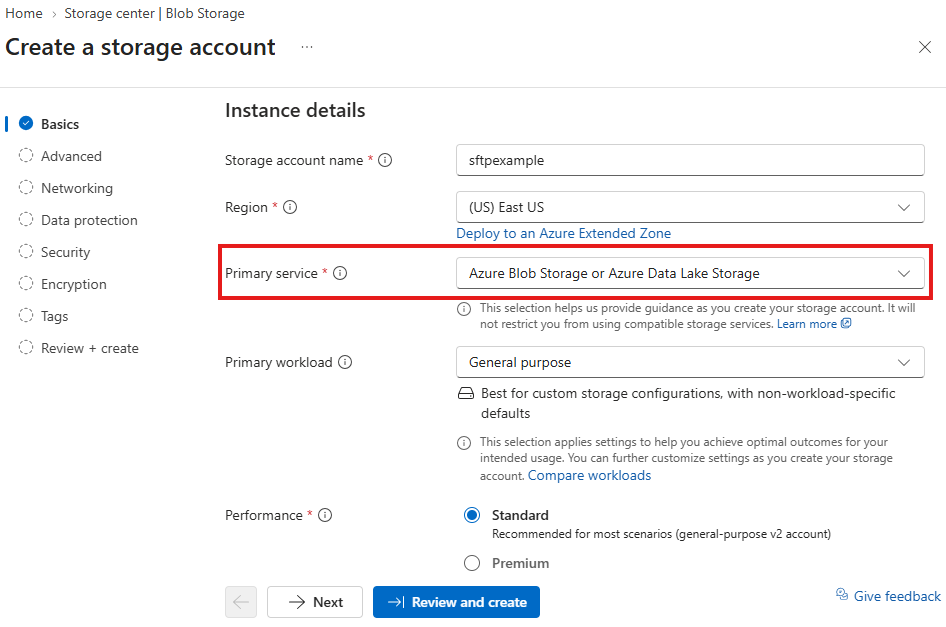
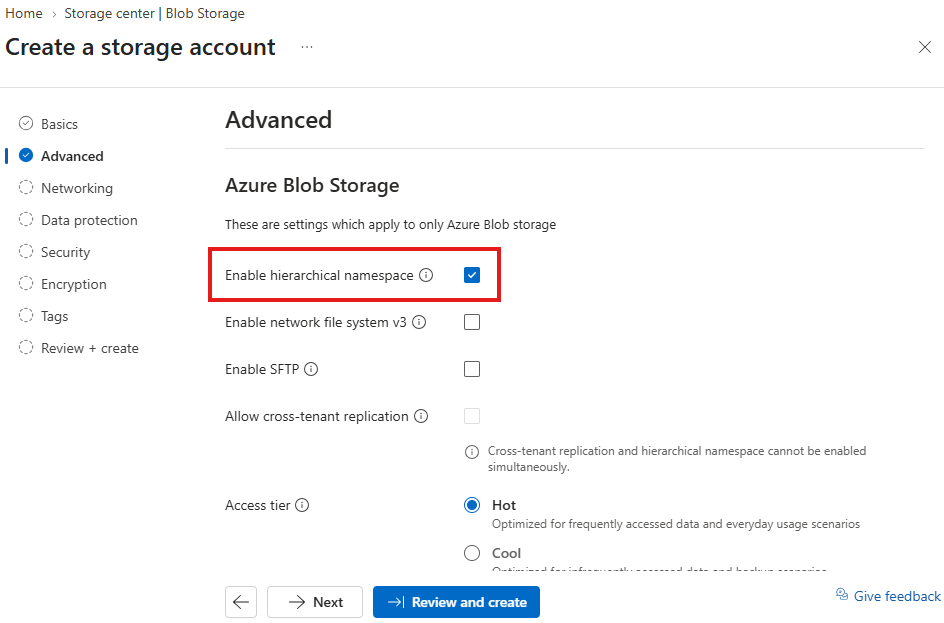
Create a storage account. Set Primary service to Azure Blob Storage or Azure Data Lake Storage. On the Advanced tab, check Enable hierarchical namespace. SFTP requires a hierarchical namespace.
-
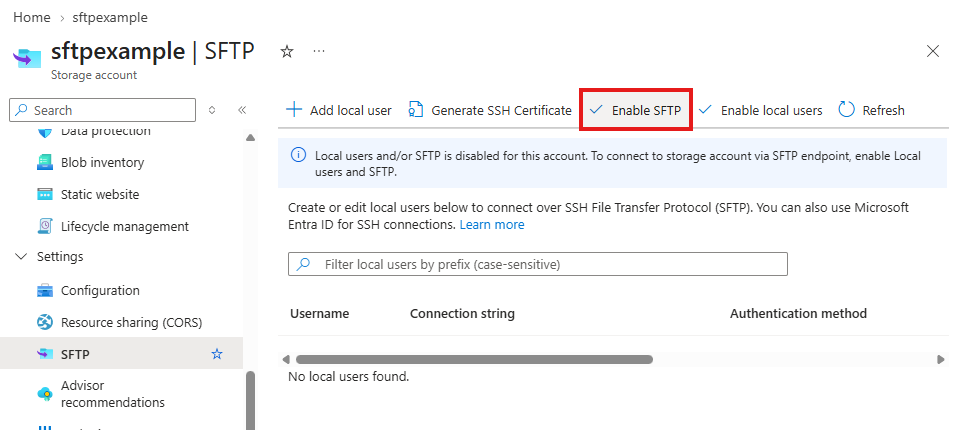
In the storage account, open Settings > SFTP and select Enable SFTP. Local users are not needed for Entra ID sign in. Enable SFTP can also be checked on the Advanced tab while creating the account.
-
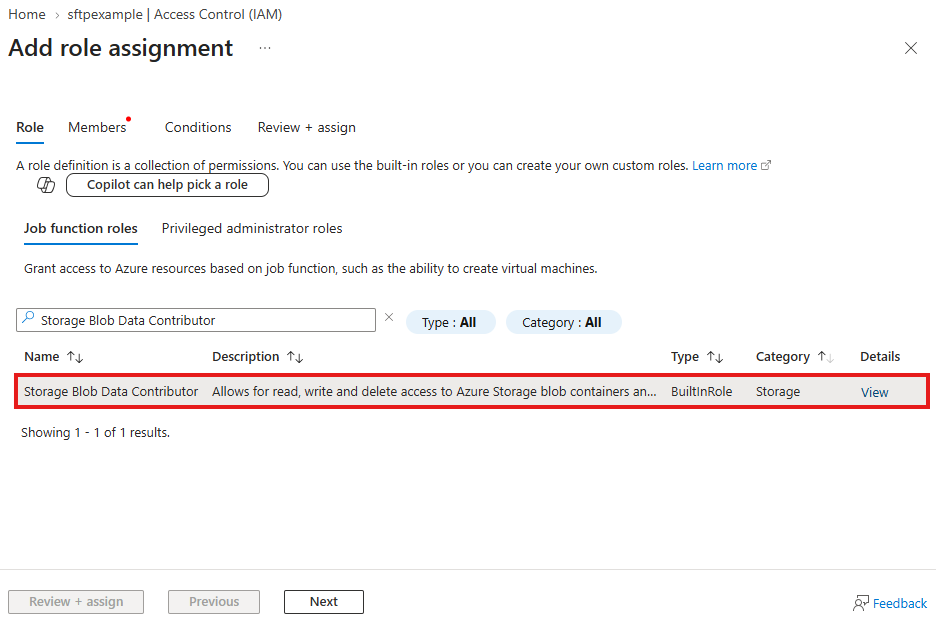
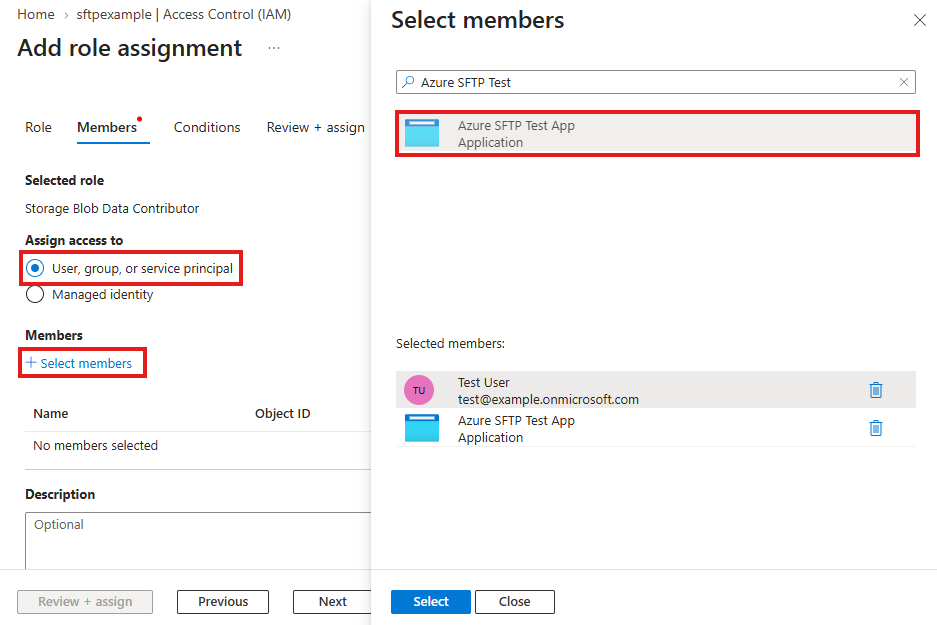
In the storage account, open Access control (IAM) and add the Storage Blob Data Contributor role for the user or the service principal. It allows reading and writing files.
To sign in as a service principal, also register an application. Our Setting up the Azure Portal for OAuth article shows these pages with screenshots.
- In the Microsoft Entra admin center, open App registrations and select New registration. A single tenant registration works. No redirect URI is needed. For the other account types, see Supported Account Types.
-
On the Overview page, copy the Application (client) ID and the Directory (tenant) ID.
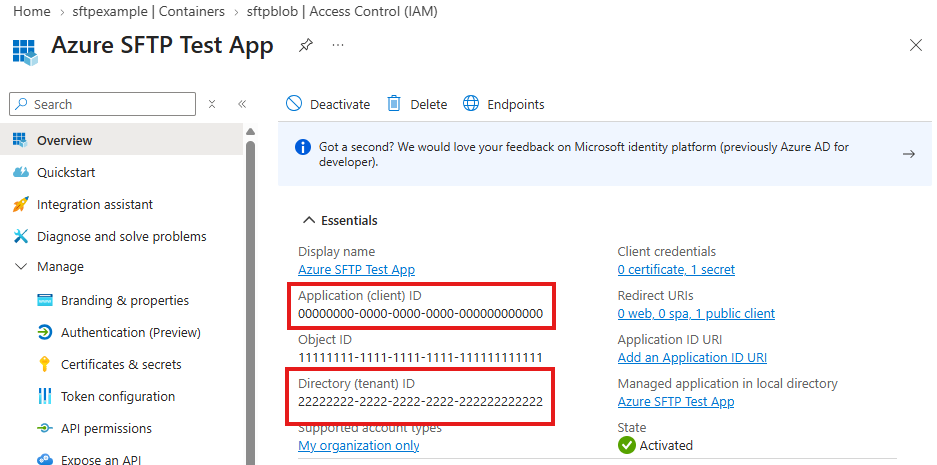
- Open Certificates & secrets and add a client secret, as shown in Secrets. Copy its value, since the portal only shows it once.
-
Give the application the Storage Blob Data Contributor role on the storage account, as in step 3 above. In the role assignment, select User, group, or service principal and search for the application name.
You will also need an RSA key pair. Entra ID only issues certificates for RSA keys. The examples below load the private key from a PEM file. To create a key, see Getting Started with CertMgr. IPWorks Encrypt can also create a key in code, as shown in RSA and DSA Asymmetric Encryption Basics. After CreateKey, the PrivateKey field of the Key property holds the private key in PEM format, ready to save to a file.
Both IPWorks and IPWorks SSH define the Certificate and CertMgr classes, so the examples below use the full class names.
Authorization
Authorization takes two steps. First, export the public key as a JWK. Then request the certificate from Entra ID with that JWK, either as a user or as a service principal.
Exporting the Public Key as a JWK
Entra ID binds the certificate to your public key. The key is sent in the token request as a JSON Web Key (JWK). The CertMgr component from IPWorks can export the public key in this format:
string keyId = Guid.NewGuid().ToString("N");

nsoftware.IPWorks.CertMgr certMgr = new nsoftware.IPWorks.CertMgr();
certMgr.Cert = new nsoftware.IPWorks.Certificate(nsoftware.IPWorks.CertStoreTypes.cstPEMKeyFile, "C:\\keys\\id_rsa.pem", "KEY_PASSWORD", "*");
certMgr.ExportPrivateKey = false;
certMgr.ExportFormat = "JWK";
certMgr.Config("JWKKeyId=" + keyId);

// An empty file name keeps the result in ExportedCert.
certMgr.ExportCertificate("", "");
string jwk = certMgr.ExportedCert;
The result looks like this:
{"kty":"RSA","n":"yRQspuYhEYUh8PjZl0Aa...","e":"AQAB","kid":"5f0c..."}
Signing In as a User
The certificate is requested from the Microsoft identity platform with an ordinary authorization code flow and three extra fields in the token request:
- The token_type field is set to ssh-cert. This tells Entra ID to return an OpenSSH certificate instead of an access token.
- The req_cnf field holds the JWK from the previous step.
- The key_id field holds the key ID used in the JWK.
The FormVarCount, FormVarName[i] and FormVarValue[i] configuration settings add these fields to the token request. The scope is added as well, the same way the Azure CLI sends it.
A user sign in uses the client ID of the Azure CLI, 04b07795-8ddb-461a-bbee-02f9e1bf7b46. Microsoft's own .NET sample for this feature signs in as the Azure CLI in the same way. An app registration of your own cannot request this certificate for a user, because the resource that issues it has no delegated permissions to grant. To use your own application, sign in as a service principal instead.
With ClientProfile set to ocpApplication, GetAuthorization opens the browser for the user to sign in. It receives the redirect on an embedded web server and exchanges the authorization code at ServerTokenURL, so the application does not handle either step.
string tenantId = "TENANT_ID";
string scope = "https://pas.windows.net/CheckMyAccess/Linux/.default offline_access";

OAuth oauth = new OAuth();
oauth.ClientProfile = OAuthClientProfiles.ocpApplication;
oauth.ClientId = "04b07795-8ddb-461a-bbee-02f9e1bf7b46";
oauth.ServerAuthURL = "https://login.microsoftonline.com/" + tenantId + "/oauth2/v2.0/authorize";
oauth.ServerTokenURL = "https://login.microsoftonline.com/" + tenantId + "/oauth2/v2.0/token";
oauth.AuthorizationScope = scope;

oauth.Config("FormVarCount=4");
oauth.Config("FormVarName[0]=scope");
oauth.Config("FormVarValue[0]=" + scope);
oauth.Config("FormVarName[1]=token_type");
oauth.Config("FormVarValue[1]=ssh-cert");
oauth.Config("FormVarName[2]=req_cnf");
oauth.Config("FormVarValue[2]=" + jwk);
oauth.Config("FormVarName[3]=key_id");
oauth.Config("FormVarValue[3]=" + keyId);

oauth.GetAuthorization();

// The OpenSSH certificate, base64 encoded.
string sshCert = oauth.AccessToken;
Read the certificate from the AccessToken property. Do not use the return value of GetAuthorization, since it adds a "Bearer" prefix.
Signing In as a Service Principal
A service principal signs in with the client credentials flow. Set GrantType to ogtClientCredentials, and set ClientId and ClientSecret to the values from the app registration. GetAuthorization then sends the token request directly, so no browser opens. The same three fields and the scope go in the token request. The scope has no offline_access, since a service principal does not receive a refresh token.
string tenantId = "TENANT_ID";

OAuth oauth = new OAuth();
oauth.GrantType = OAuthGrantTypes.ogtClientCredentials;
oauth.ClientId = "CLIENT_ID";
oauth.ClientSecret = "CLIENT_SECRET";
oauth.ServerTokenURL = "https://login.microsoftonline.com/" + tenantId + "/oauth2/v2.0/token";
// Send the client ID and secret in the request body.
oauth.Config("IncludeClientCredsInBody=true");

oauth.Config("FormVarCount=4");
oauth.Config("FormVarName[0]=scope");
oauth.Config("FormVarValue[0]=https://pas.windows.net/CheckMyAccess/Linux/.default");
oauth.Config("FormVarName[1]=token_type");
oauth.Config("FormVarValue[1]=ssh-cert");
oauth.Config("FormVarName[2]=req_cnf");
oauth.Config("FormVarValue[2]=" + jwk);
oauth.Config("FormVarName[3]=key_id");
oauth.Config("FormVarValue[3]=" + keyId);

oauth.GetAuthorization();

// The OpenSSH certificate, base64 encoded.
string sshCert = oauth.AccessToken;
Keep the client secret out of source code, for example in an environment variable or a key vault. For more about the client credentials flow, please see our Authenticating to Microsoft (Office) 365 with OAuth as an Unattended Application article.
For more information about the OAuth component with Microsoft Entra ID, please see our Setting up the Azure Portal for OAuth article.
Using a Certificate from the Azure CLI
If the Azure CLI is installed, it can request the certificate instead of the OAuth component. It needs the public key in OpenSSH format, which ssh-keygen can create from the PEM file:
ssh-keygen -y -f C:\keys\id_rsa.pem > C:\keys\id_rsa.pub
az login
az sftp cert --public-key-file C:\keys\id_rsa.pub --file C:\keys\id_rsa-cert.pub
For a service principal, sign in with az login --service-principal instead. The certificate file holds the algorithm ssh-rsa-cert-v01@openssh.com followed by the base64 certificate. Read the base64 part and pass it to SignedSSHCert as shown in the next section:
string sshCert = File.ReadAllText("C:\\keys\\id_rsa-cert.pub").Trim().Split(' ')[1];
Connecting with SFTPClient
Connect with public key authentication. Set SSHCert to the private key and pass the certificate in the SignedSSHCert configuration setting.
The user name has the form storageaccount.principal. For a user, the principal is the part of the Entra ID sign in name before the @ sign. For example, jsmith@contoso.com connecting to the storage account mystorage becomes mystorage.jsmith. For a service principal, the principal is the application (client) ID of the app registration, for example mystorage.11111111-2222-3333-4444-555555555555.
string storageAccount = "STORAGE_ACCOUNT";

SFTPClient sftp = new SFTPClient();
// The Entra ID name before the @ sign, or the application (client) ID of a service principal.
sftp.SSHUser = storageAccount + ".USER_NAME";
sftp.SSHAuthMode = SFTPClientSSHAuthModes.amPublicKey;
sftp.SSHCert = new nsoftware.IPWorksSSH.Certificate(nsoftware.IPWorksSSH.CertStoreTypes.cstPEMKeyFile, "C:\\keys\\id_rsa.pem", "KEY_PASSWORD", "*");
sftp.Config("SignedSSHCert=rsa-sha2-256-cert-v01@openssh.com " + sshCert);
sftp.Config("SSHAcceptServerHostKeyFingerPrint=HOST_KEY_FINGERPRINT");
sftp.SSHLogon(storageAccount + ".blob.core.windows.net", 22);

// Lists the containers in the storage account.
sftp.ListDirectory();
sftp.SSHLogoff();
SignedSSHCert takes the certificate in the OpenSSH public key format: the algorithm followed by the base64 certificate. The rsa-sha2-256-cert-v01@openssh.com algorithm signs with SHA-256, which Azure accepts.
For other ways to verify the server's host key, see SSH Authentication.
The session starts at the root of the storage account. Call ChangeRemotePath to move into a container.
Renewing the Certificate
The certificate is valid for 65 minutes. After it expires, request a new one by calling GetAuthorization again with the same settings. Then pass the new certificate to SignedSSHCert before the next SSHLogon. A service principal has no refresh token, so each call sends its client ID and secret again.
Complete Example
The program below combines the steps above. It requests the certificate as a user or as a service principal, then lists the containers in the storage account.
using System;
using nsoftware.IPWorks;
using nsoftware.IPWorksSSH;

string tenantId = "TENANT_ID";
string storageAccount = "STORAGE_ACCOUNT";
string keyFile = "C:\\keys\\id_rsa.pem";
string keyPassword = "KEY_PASSWORD";
string scope = "https://pas.windows.net/CheckMyAccess/Linux/.default";

// Set to true to sign in as a service principal instead of a user.
bool useServicePrincipal = false;
// The Entra ID name before the @ sign, or the application (client) ID of a service principal.
string userName = "USER_NAME";

// Export the public key as a JWK.
string keyId = Guid.NewGuid().ToString("N");
nsoftware.IPWorks.CertMgr certMgr = new nsoftware.IPWorks.CertMgr();
certMgr.Cert = new nsoftware.IPWorks.Certificate(nsoftware.IPWorks.CertStoreTypes.cstPEMKeyFile, keyFile, keyPassword, "*");
certMgr.ExportPrivateKey = false;
certMgr.ExportFormat = "JWK";
certMgr.Config("JWKKeyId=" + keyId);
certMgr.ExportCertificate("", "");
string jwk = certMgr.ExportedCert;

// Request the OpenSSH certificate from Entra ID.
OAuth oauth = new OAuth();
oauth.ServerTokenURL = "https://login.microsoftonline.com/" + tenantId + "/oauth2/v2.0/token";
string requestScope = scope;
if (useServicePrincipal)
{
    // A service principal signs in with its own client ID and secret.
    oauth.GrantType = OAuthGrantTypes.ogtClientCredentials;
    oauth.ClientId = "CLIENT_ID";
    oauth.ClientSecret = Environment.GetEnvironmentVariable("ENTRA_CLIENT_SECRET");
    oauth.Config("IncludeClientCredsInBody=true");
}
else
{
    // A user signs in through a browser with the client ID of the Azure CLI.
    requestScope = scope + " offline_access";
    oauth.ClientProfile = OAuthClientProfiles.ocpApplication;
    oauth.ClientId = "04b07795-8ddb-461a-bbee-02f9e1bf7b46";
    oauth.ServerAuthURL = "https://login.microsoftonline.com/" + tenantId + "/oauth2/v2.0/authorize";
    oauth.AuthorizationScope = requestScope;
}
oauth.Config("FormVarCount=4");
oauth.Config("FormVarName[0]=scope");
oauth.Config("FormVarValue[0]=" + requestScope);
oauth.Config("FormVarName[1]=token_type");
oauth.Config("FormVarValue[1]=ssh-cert");
oauth.Config("FormVarName[2]=req_cnf");
oauth.Config("FormVarValue[2]=" + jwk);
oauth.Config("FormVarName[3]=key_id");
oauth.Config("FormVarValue[3]=" + keyId);
oauth.GetAuthorization();
string sshCert = oauth.AccessToken;

// Connect to Azure Blob Storage SFTP and list the containers.
SFTPClient sftp = new SFTPClient();
sftp.OnDirList += (s, e) => Console.WriteLine(e.FileName);
sftp.SSHUser = storageAccount + "." + userName;
sftp.SSHAuthMode = SFTPClientSSHAuthModes.amPublicKey;
sftp.SSHCert = new nsoftware.IPWorksSSH.Certificate(nsoftware.IPWorksSSH.CertStoreTypes.cstPEMKeyFile, keyFile, keyPassword, "*");
sftp.Config("SignedSSHCert=rsa-sha2-256-cert-v01@openssh.com " + sshCert);
sftp.Config("SSHAcceptServerHostKeyFingerPrint=HOST_KEY_FINGERPRINT");
sftp.SSHLogon(storageAccount + ".blob.core.windows.net", 22);
sftp.ListDirectory();
sftp.SSHLogoff();
Limitations
These limits come from Azure, not from the components:
- Only RSA keys are supported. ECDSA and Ed25519 keys are not.
- Password authentication is not supported for Entra ID users.
- Managed identities are not supported.
- The connection always starts at the root of the storage account. The user name cannot include a container, and home directories are not supported.
- If you receive a permission denied error after signing in, check the role assignment from the Azure Setup step. New role assignments can take a few minutes to apply.
For more details, see Microsoft's article Authorize SFTP access to blobs using Microsoft Entra ID.
Frequently Asked Questions
Does Azure Blob Storage SFTP support Microsoft Entra ID (Azure AD)?
Yes. Azure accepts Entra ID users and service principals through short-lived OpenSSH user certificates instead of passwords or access tokens. The SFTPClient component passes the certificate in the SignedSSHCert configuration setting.
How do I connect to Azure SFTP with Entra ID without the Azure CLI?
Request the certificate with the OAuth component and connect with the SFTPClient component. GetAuthorization returns the certificate in AccessToken, so the Azure CLI does not need to be installed. The steps in this article replace az sftp cert.
How do I connect to Azure SFTP from a service or scheduled job?
Sign in as a service principal. Set GrantType to ogtClientCredentials with the ClientId and ClientSecret of the app registration, then call GetAuthorization. No user or browser is involved, and the service principal needs the Storage Blob Data Contributor role on the storage account. Its SFTP user name is the storage account name and the application (client) ID.
Can I use my own app registration instead of the Azure CLI client ID?
For a user sign in, no. The resource that issues the certificate has no delegated permissions, so Entra ID rejects the request with AADSTS650057. A service principal can use its own app registration with the client credentials flow.
Can I use an OAuth access token or a password over SFTP?
No. SSH has no OAuth authentication method, and Azure does not accept passwords for Entra ID users. Set the token_type field to ssh-cert with FormVarName[i] and FormVarValue[i], so Entra ID returns a certificate instead of an access token.
Which key types does Azure SFTP accept with Entra ID?
Only RSA keys. Entra ID does not issue certificates for ECDSA or Ed25519 keys, so load an RSA key into SSHCert.
How long is the Entra ID SSH certificate valid?
The certificate is valid for 65 minutes. Call GetAuthorization again for a new one, as shown in Renewing the Certificate.
We appreciate your feedback. If you have any questions, comments, or suggestions about this article please contact our support team at support@nsoftware.com.