

Adding and Customizing Watermarks with PDFGen
Requirements: PDF SDK
Introduction
Watermarks provide a simple way to add identifying or informational text to the pages of a generated document, such as a confidentiality notice, draft status, or company name. This article shows how to add watermarks with the PDFGen component, control their position and orientation, tile them across the page, and customize their appearance. For an introduction to the component, see Getting Started with PDFGen.
Adding a Basic Watermark
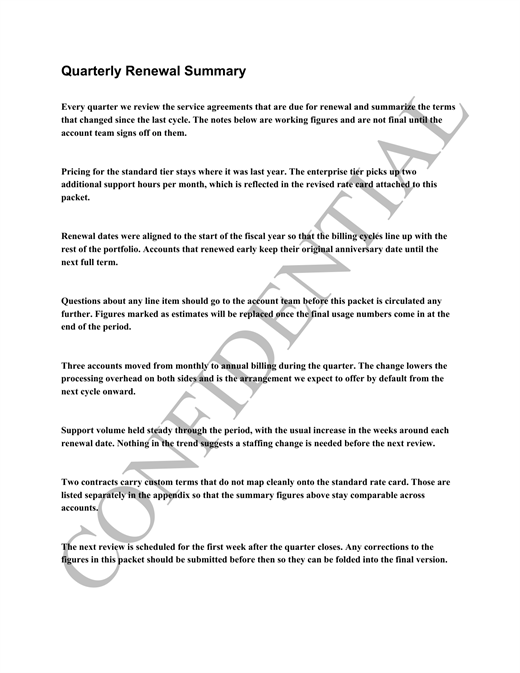
A basic watermark can be added by setting the Watermark document or page property using SetDocumentProperty or SetPageProperty:
pdfgen.SetDocumentProperty("Watermark", "CONFIDENTIAL");
For more information about the difference between document-level and page-level watermarks, see Document-Level versus Page-Level Watermarks.
By default, the watermark is drawn as a single instance stretched diagonally across the page from the bottom-left corner to the top-right corner, sized automatically to fit the page.
Choosing a Position and Orientation
The WatermarkStyle property (available at both the document and page level via SetDocumentProperty and SetPageProperty) controls the line along which the watermark is drawn. It accepts one or more space-separated keywords, and defaults to diagonal:
| Keyword(s) | Effect |
|---|---|
| diagonal | Diagonal from the bottom-left corner to the top-right corner |
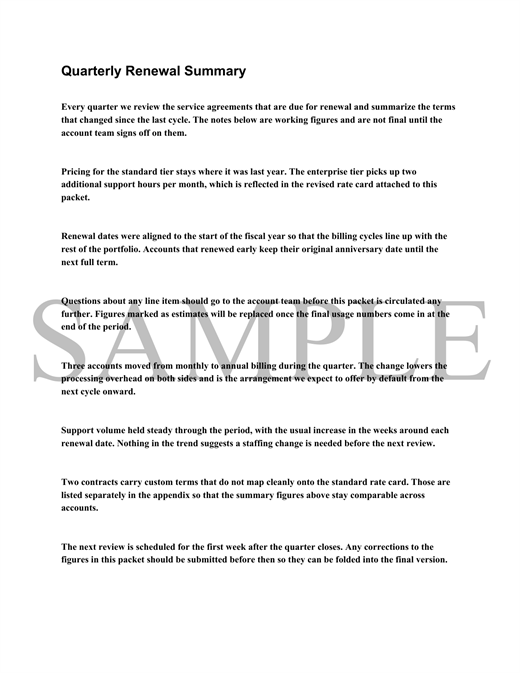
| horizontal or E / east | Straight line across the vertical center of the page, reading left to right |
| W / west | Straight line across the vertical center of the page, reading right to left |
| vertical or N / north | Straight line up the horizontal center of the page, reading bottom to top |
| S / south | Straight line down the horizontal center of the page, reading top to bottom |
| NE / northeast | Diagonal from the bottom-left corner to the top-right corner |
| NW / northwest | Diagonal from the bottom-right corner to the top-left corner |
| SE / southeast | Diagonal from the top-left corner to the bottom-right corner |
| SW / southwest | Diagonal from the top-right corner to the bottom-left corner |
For example, to place the watermark horizontally instead of diagonally:
pdfgen.SetDocumentProperty("Watermark", "SAMPLE");
pdfgen.SetDocumentProperty("WatermarkStyle", "horizontal");
Tiling the Watermark
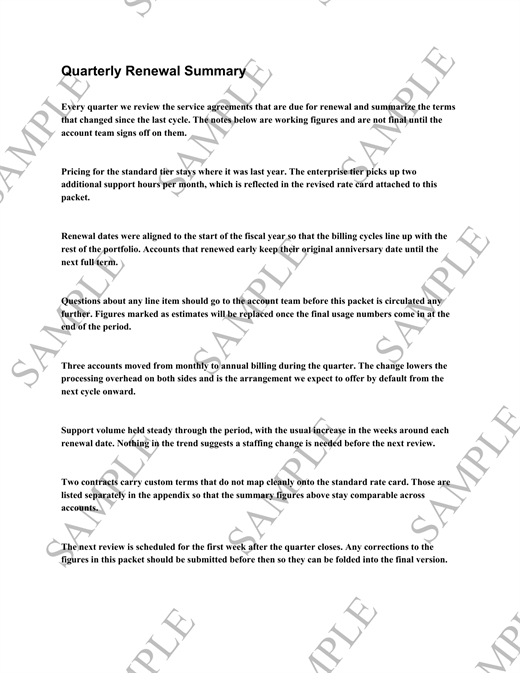
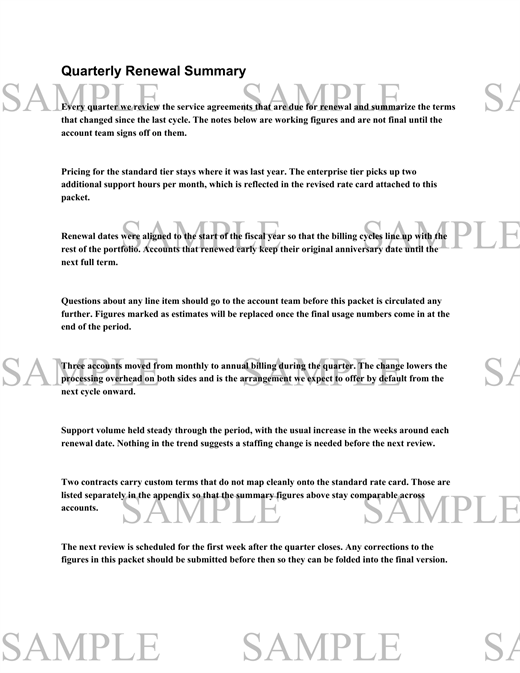
To repeat the watermark many times across the page instead of only once, add either the scattered or brickwork keyword to WatermarkStyle:
- scattered repeats the watermark in a grid that is rotated to match the orientation keyword (or the default diagonal if none is provided).
- brickwork repeats the watermark in horizontal rows to create a brick-like pattern, regardless of the specified orientation.
pdfgen.SetDocumentProperty("Watermark", "SAMPLE");
pdfgen.SetDocumentProperty("WatermarkStyle", "scattered");
pdfgen.SetDocumentProperty("Watermark", "SAMPLE");
pdfgen.SetDocumentProperty("WatermarkStyle", "brickwork");
Either keyword can be combined with a direction keyword, for instance scattered southeast.
Customizing the Watermark Font
The font used for the watermark is controlled by the WatermarkFont, WatermarkFontSize, WatermarkFontStyle, and WatermarkFontColor properties, again available at both the document and page level:
pdfgen.SetDocumentProperty("Watermark", "CONFIDENTIAL");
pdfgen.SetDocumentProperty("WatermarkFont", "Arial");
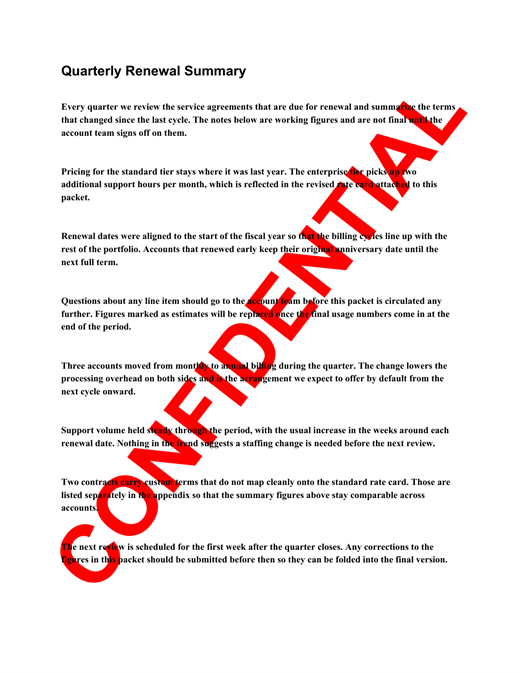
pdfgen.SetDocumentProperty("WatermarkFontStyle", "bold");
pdfgen.SetDocumentProperty("WatermarkFontColor", "red");
Transparency
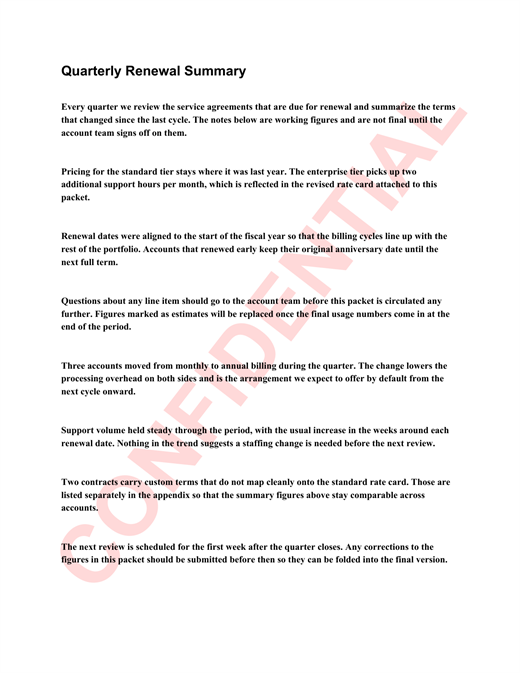
As the above screenshot shows, a fully saturated watermark competes with the page content for attention. The default watermark color (#BFBFBF, a light gray) keeps the watermark out of the way on its own, but any color can be toned down by adding an opacity figure to WatermarkFontStyle alongside the usual bold and/or italic keywords. This figure can be written as either a percentage or a decimal where a lower value means a more transparent watermark. That is, bold 15% and bold 0.15 are equivalent:
pdfgen.SetDocumentProperty("Watermark", "CONFIDENTIAL");
pdfgen.SetDocumentProperty("WatermarkFont", "Arial");
pdfgen.SetDocumentProperty("WatermarkFontStyle", "bold 15%");
pdfgen.SetDocumentProperty("WatermarkFontColor", "red");
Page-level font properties are independent of one another: setting only WatermarkFontColor using SetPageProperty, for example, overrides only the color for that page, while the font name, style, and size continue to inherit from the document-level (or default) settings.
Auto-Sizing
Unless an explicit WatermarkFontSize is set, a single, non-tiled watermark is automatically scaled to fill roughly 90% of the available space along its line, so the same watermark text remains appropriately sized regardless of page dimensions or orientation. Explicitly setting a font size disables auto-sizing and instructs the component to draw the watermark at exactly that size. To make the watermark scale to the page size again, set WatermarkFontSize to an empty string.
Document-Level versus Page-Level Watermarks
As with headers, footers, and page numbers, watermark-related properties come in two flavors:
- Properties set with SetDocumentProperty persist for the remainder of the document, applying to every page from that point forward.
- Properties set with SetPageProperty apply only to the next rendered page and are automatically cleared afterward, falling back to the document-level (or default) values on subsequent pages.
This makes it easy to, for instance, apply a "DRAFT" watermark throughout most of a document while stamping a single page with "REDACTED" instead:
pdfgen.SetDocumentProperty("Watermark", "DRAFT");
// ... add content
pdfgen.SetPageProperty("Watermark", "REDACTED");
pdfgen.SetPageProperty("WatermarkFontColor", "red");
// ... this page is stamped "REDACTED" in red; later pages return to "DRAFT" ...
We appreciate your feedback. If you have any questions, comments, or suggestions about this article please contact our support team at support@nsoftware.com.